cpd.so manual — Professional
A step-by-step guide for health professionals, teachers, and other licensed practitioners who use cpd.so to find accredited Continuing Professional Development courses, earn CPD hours, and bind those hours to their regulator's record.
Looking for a different role? See
manual-provider.md(training institutions),manual-sponsor.md(employers buying seats for staff), ormanual-admin.md(cpd super-admin staff).
Before you begin
- A laptop or phone with any modern browser (Chrome, Safari, Edge, Firefox).
- Internet access.
- An email address you can receive mail at (for the magic-link sign-in).
- Optional but recommended: your NIRA national-ID number or passport number so the certificates you earn carry a verifiable identity.
You do not need a Google or Apple account. cpd.so signs you in by emailing you a single-use link.
Chapter 1 · Find cpd.so and sign in
1.1 · Open the catalogue first
You can browse every accredited course on cpd.so without signing in.
- Open your browser and go to
cpd.so. - Click Courses in the top navigation.
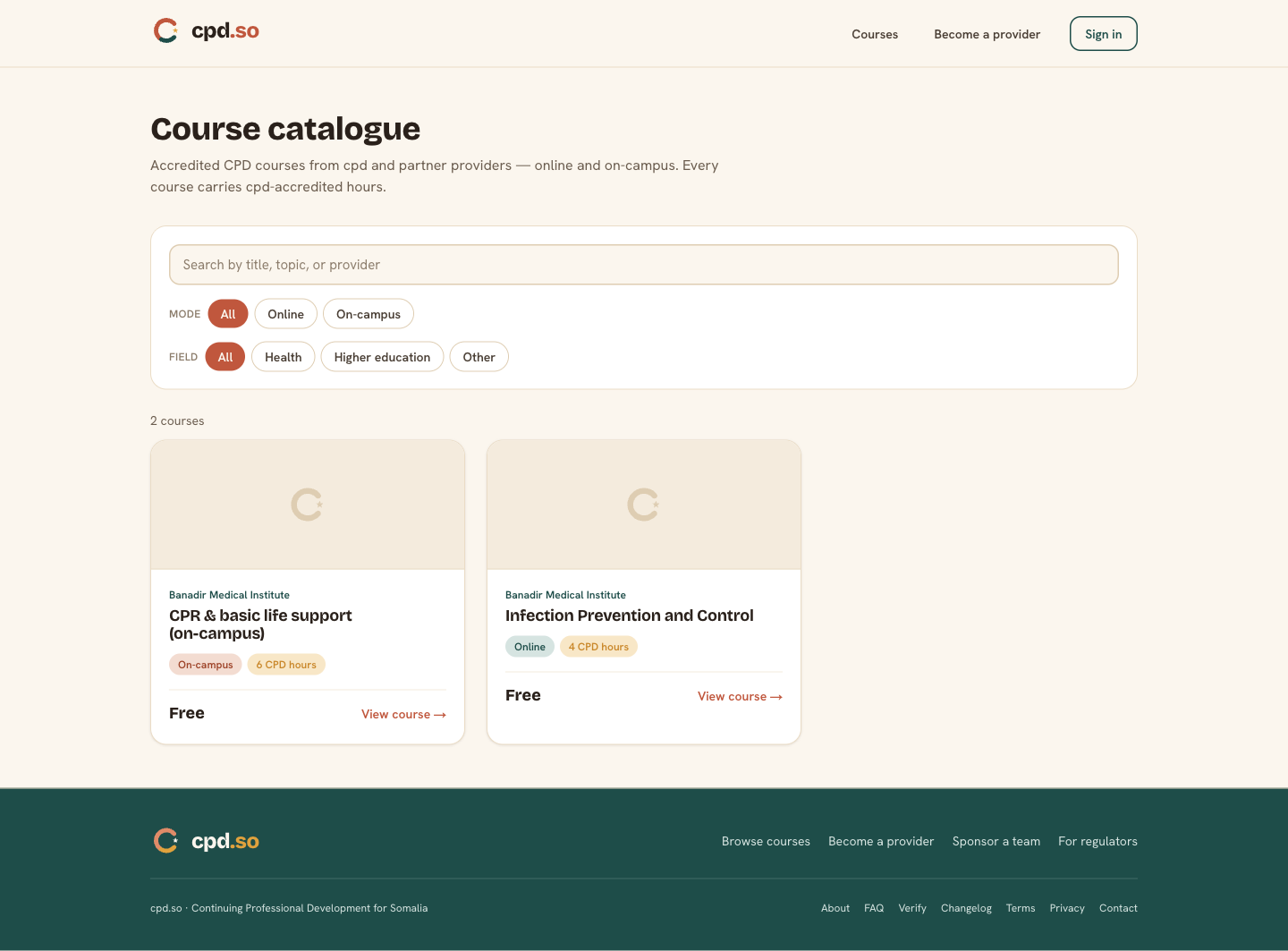
Each card shows:
- The course title.
- The provider that runs it (a training institute, hospital, or cpd itself).
- The delivery mode — Online or On-campus.
- The number of CPD hours the course carries once you finish it.
- The fee (free or in US dollars; on-campus courses always have a session schedule).
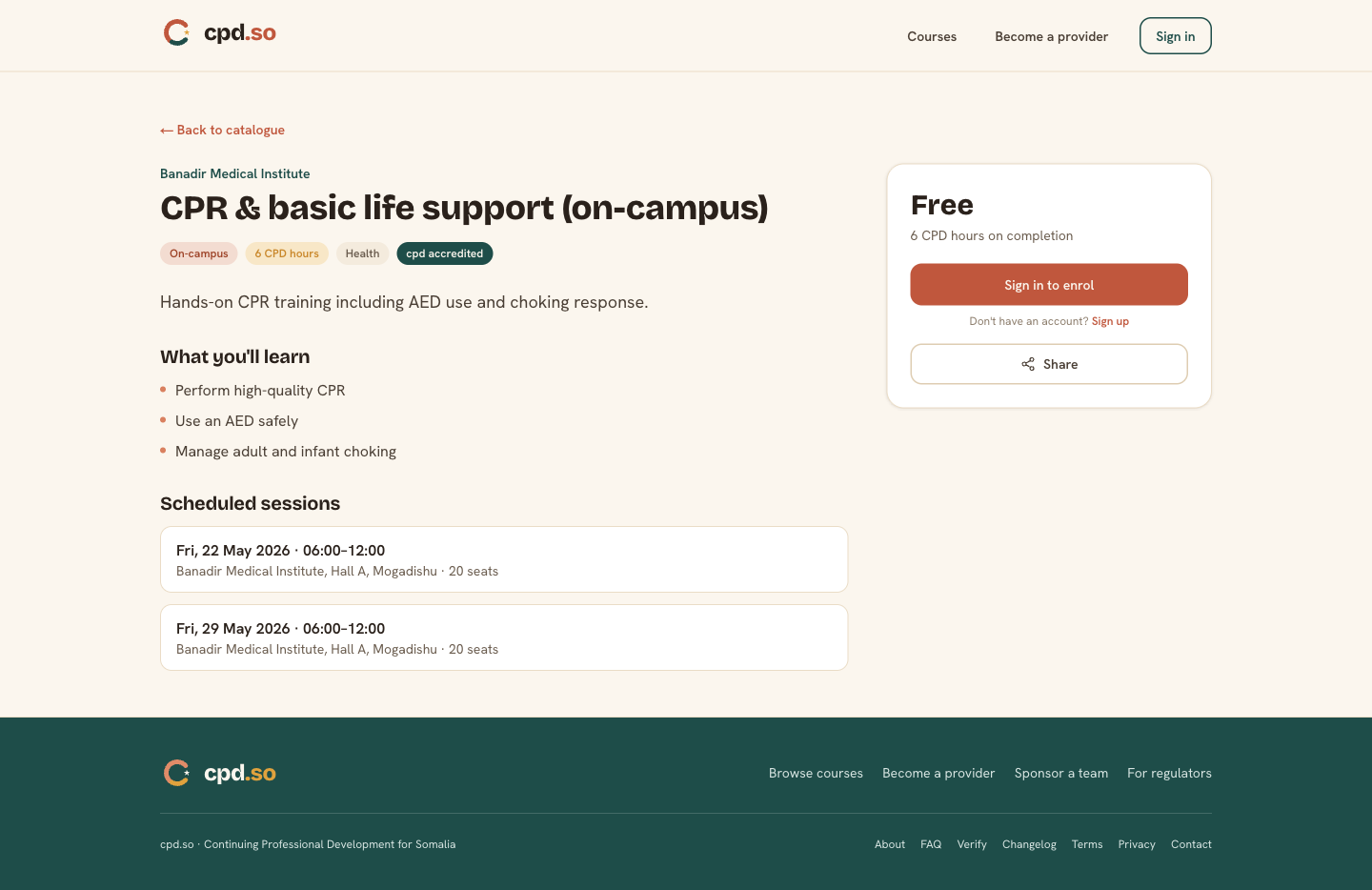
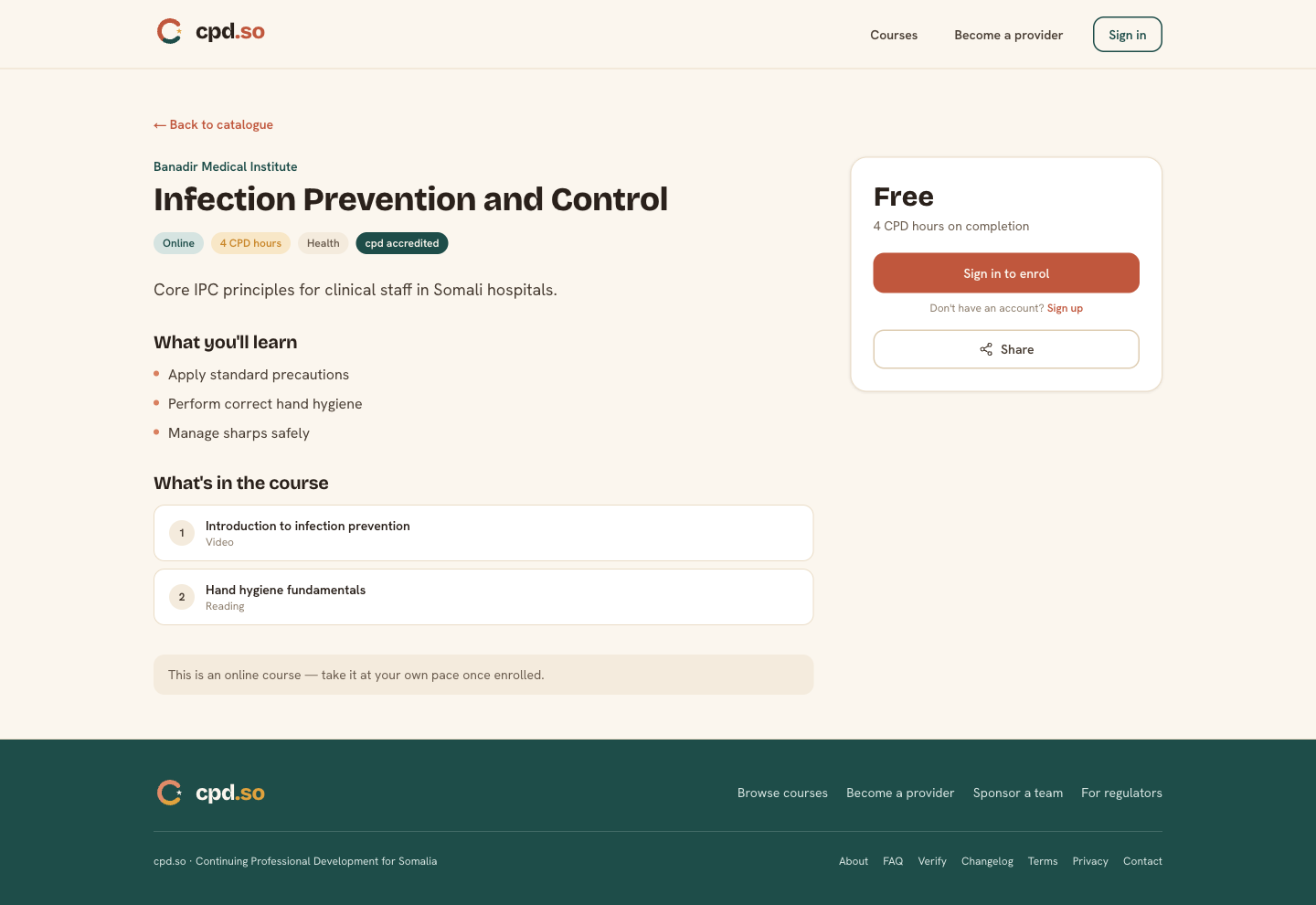
Click any card to see the full description, learning objectives, and (for on-campus) the upcoming session dates and venues.
1.2 · Sign in when you're ready to enrol
When you click Enrol on any course (or Sign in in the top-right), cpd.so opens the sign-in page.
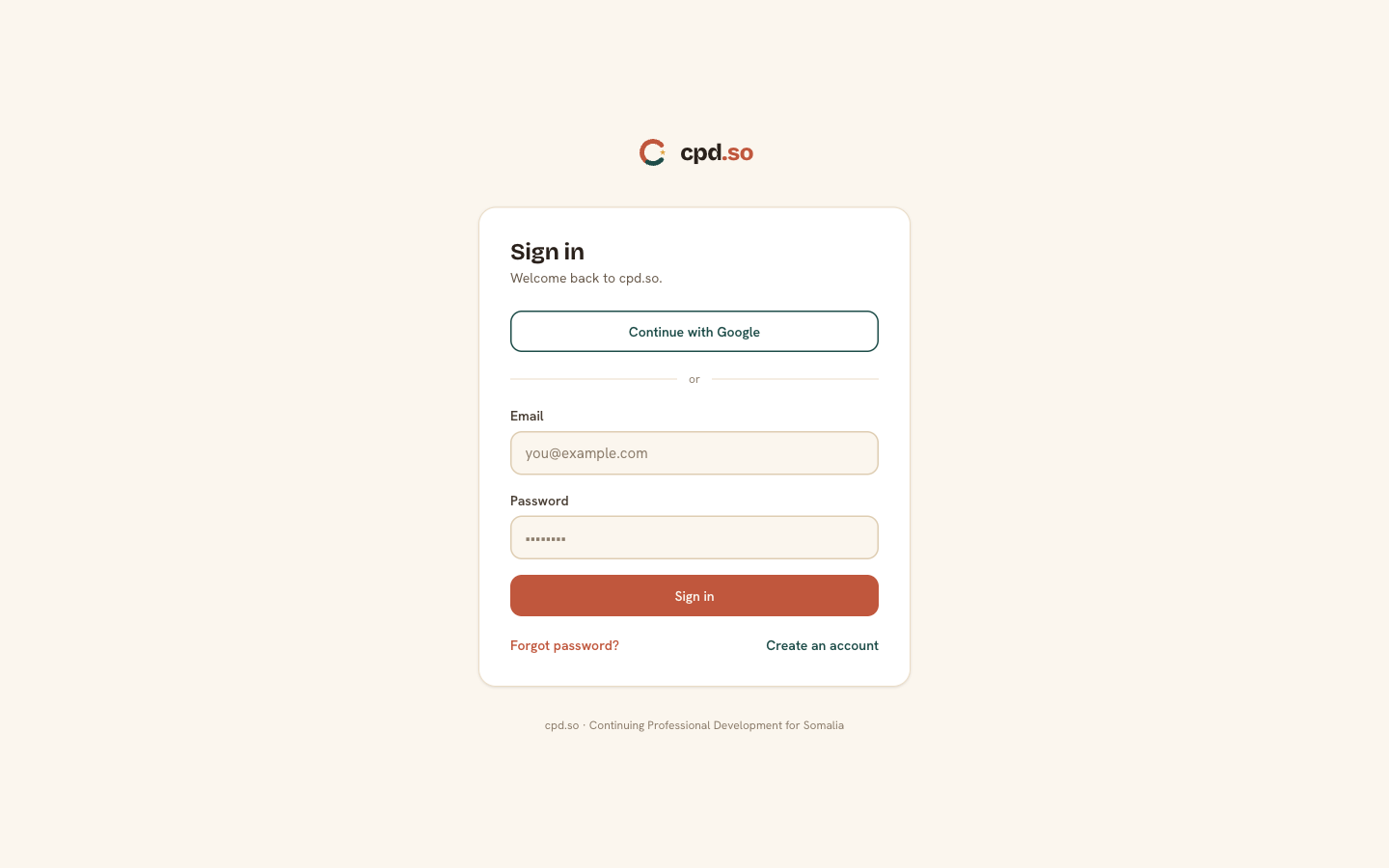
- Type the email address you'd like to use for cpd.so.
- Click Send a sign-in link.
- Open your email inbox and click the link cpd.so sends you. It expires after one hour.
The first time you sign in, cpd.so creates your account and takes you to your dashboard. Every other time it lands you straight on your dashboard.
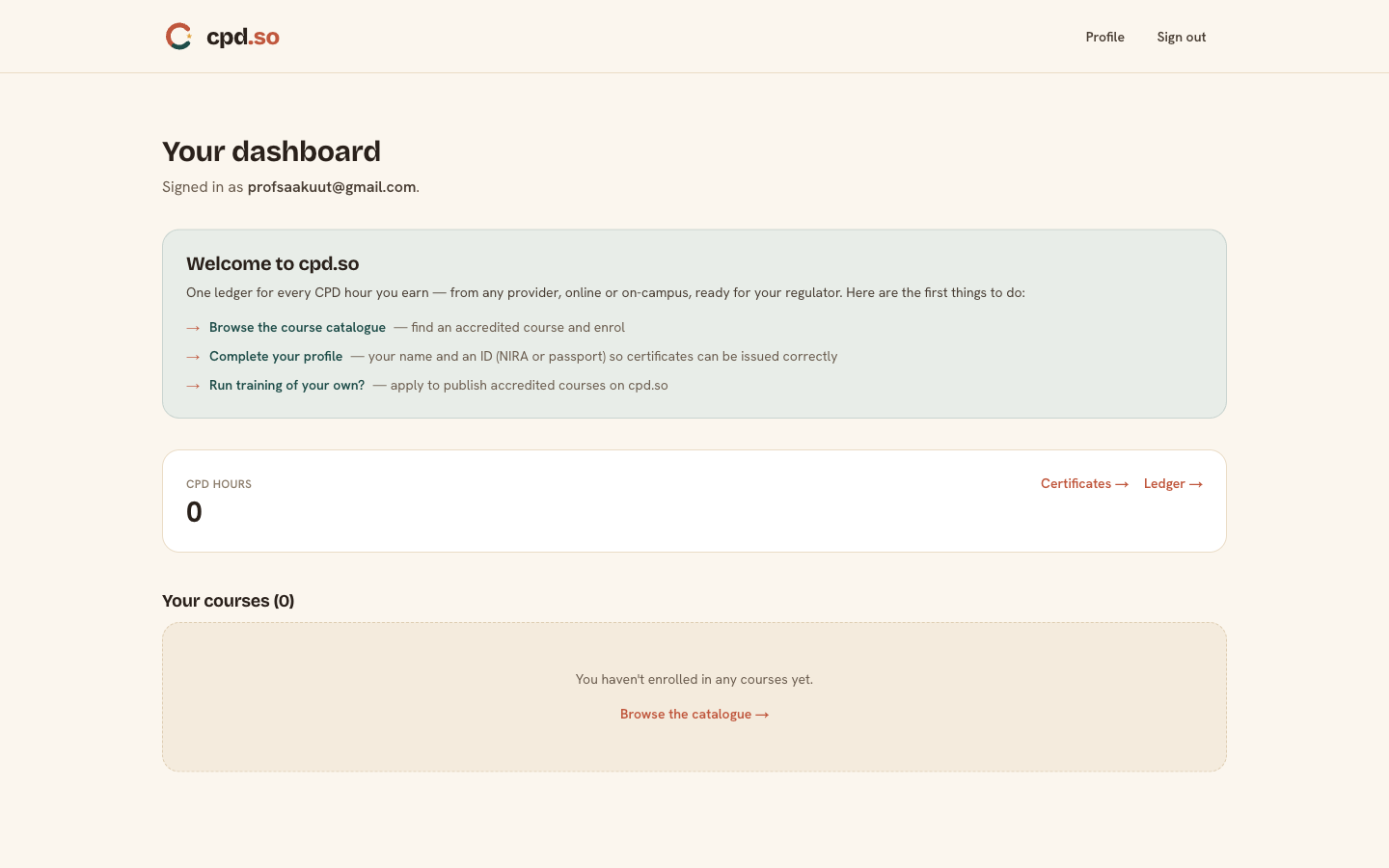
If you signed in from an Enrol button, cpd.so takes you back to the enrolment page so you can complete the enrolment in one click — your sign-in is remembered.
Chapter 2 · Set up your profile
Your profile is what cpd.so prints on your certificates and what it uses when you decide to Connect your CPD hours to a regulator (Chapter 6). The first time you sign in, you'll see a yellow "Complete your profile" panel on the dashboard nudging you to fill it in.
- Click Profile in the dashboard header, or Complete your profile from the welcome panel.
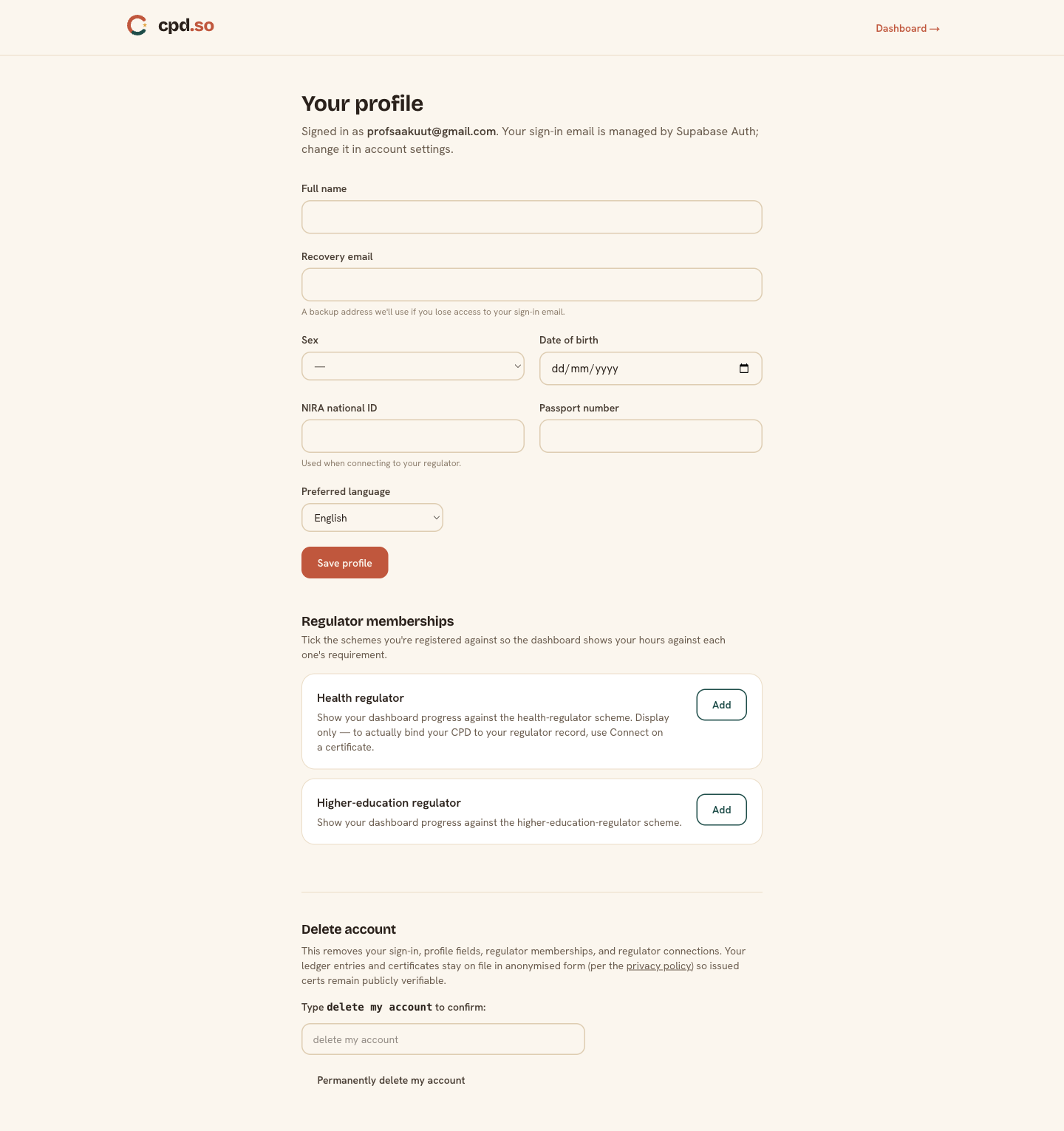
- Fill the form:
| Field | What to enter |
|---|---|
| Full name | Exactly as it should appear on certificates. Once you've issued a certificate this is harder to change cleanly. |
| Recovery email (optional) | A second email cpd.so can fall back to if you ever lose access to your sign-in inbox. |
| Date of birth (optional) | Used by some regulators when binding your CPD record. |
| Sex (optional) | Used by some regulators (notably NHPC). |
| NIRA national-ID number (Somalis) | 12-character NIRA number. Required if you intend to bind hours to the health regulator. |
| Passport number (non-Somalis or as a fallback) | Used as identity for foreign-trained applicants. |
| Preferred language | English, Somali, or Arabic. Most pages are English-only at launch; this preference is recorded so cpd can switch later. |
- Scroll to Regulator memberships and Add the schemes you intend to count CPD against. The dashboard will then show your progress against each scheme's annual requirement.
- Click Save profile.
The NIRA and passport fields can be edited later, but most other regulators consider them part of your identity. Update them only if they actually changed.
Chapter 3 · Enrol in a course
There are three enrolment flows. cpd.so picks the right one based on the course:
3.1 · Free online course (cpd-hosted)
- Open the course page.
- Click the orange Enrol — free button.
- cpd.so creates your enrolment and takes you straight to the first lesson.
3.2 · Paid online course (cpd-hosted or external)
- Open the course page and click Enrol — $XX.
- On the enrolment page choose your payment method:
- WaafiPay — push to your Hormuud mobile money.
- eDahab — push to your Somtel mobile money.
- Enter your mobile number. cpd.so initiates the payment and your phone will buzz with a prompt to approve.
- Approve the payment. The enrolment page refreshes when cpd.so confirms it.
If the course is online · external, you'll see a Continue to provider button on your dashboard that takes you off-site to the provider's learning platform.
3.3 · On-campus course
On-campus courses run on specific dates at a specific venue. The enrolment page shows the upcoming sessions:
- Pick the session that works for you.
- (Paid courses only.) Choose WaafiPay or eDahab and complete the mobile-money push.
- Free on-campus courses enrol you with a single click.
- cpd.so emails you a check-in code (a 6-character code on your dashboard at
/oncampus/<enrolment-id>). Bring it to the venue on the session date — the trainer scans your code at the door to mark you attended.
The 3 columns at the top of every dashboard tell you, at a glance, the CPD hours you've earned so far, your certificates, and your enrolments in progress. Open them at any time from the dashboard header.
Chapter 4 · Finish an online (cpd-hosted) course
/learn/<enrolment-id> is your learning page for cpd-hosted online courses.
- Open the course from your dashboard. You'll see the module list.
- Click the first module. Each module shows its content (text + embedded video where the provider has added one).
- Tick I've completed this module at the bottom of the module to mark it done.
- Move through each module in turn.
- When every module is marked complete, an End-of-course assessment appears.
- Take the assessment. Each question has a single correct answer; you must score at least the pass-mark the provider has set (usually 80%) to issue your certificate.
- If you pass, your certificate is generated automatically and appears on your dashboard within seconds.
The dashboard's Enrolments list status pill flips from In progress → Passed → Completed as you progress.
Chapter 5 · Attend an on-campus course
/oncampus/<enrolment-id> is your check-in page for on-campus courses.
- Open it on the morning of the session. It shows:
- Your check-in code (6 characters).
- The venue address and start time.
- A QR code for the trainer's scanner.
- Arrive at the venue. The trainer (or the provider's check-in desk) scans your QR or types your code into their dashboard. Your enrolment flips to Attended.
- When the trainer marks the session complete (usually that evening), cpd.so issues your certificate.
If you can't attend the session, you can switch to another upcoming session of the same course from the on-campus page, subject to seat availability.
Chapter 6 · Certificates, ledger, and Connect
6.1 · Where your certificates live
Click Certificates in the dashboard. Each row links to a public certificate page at /certificates/<id> — that's the same page anyone can open from cpd.so/verify to confirm the certificate is real.
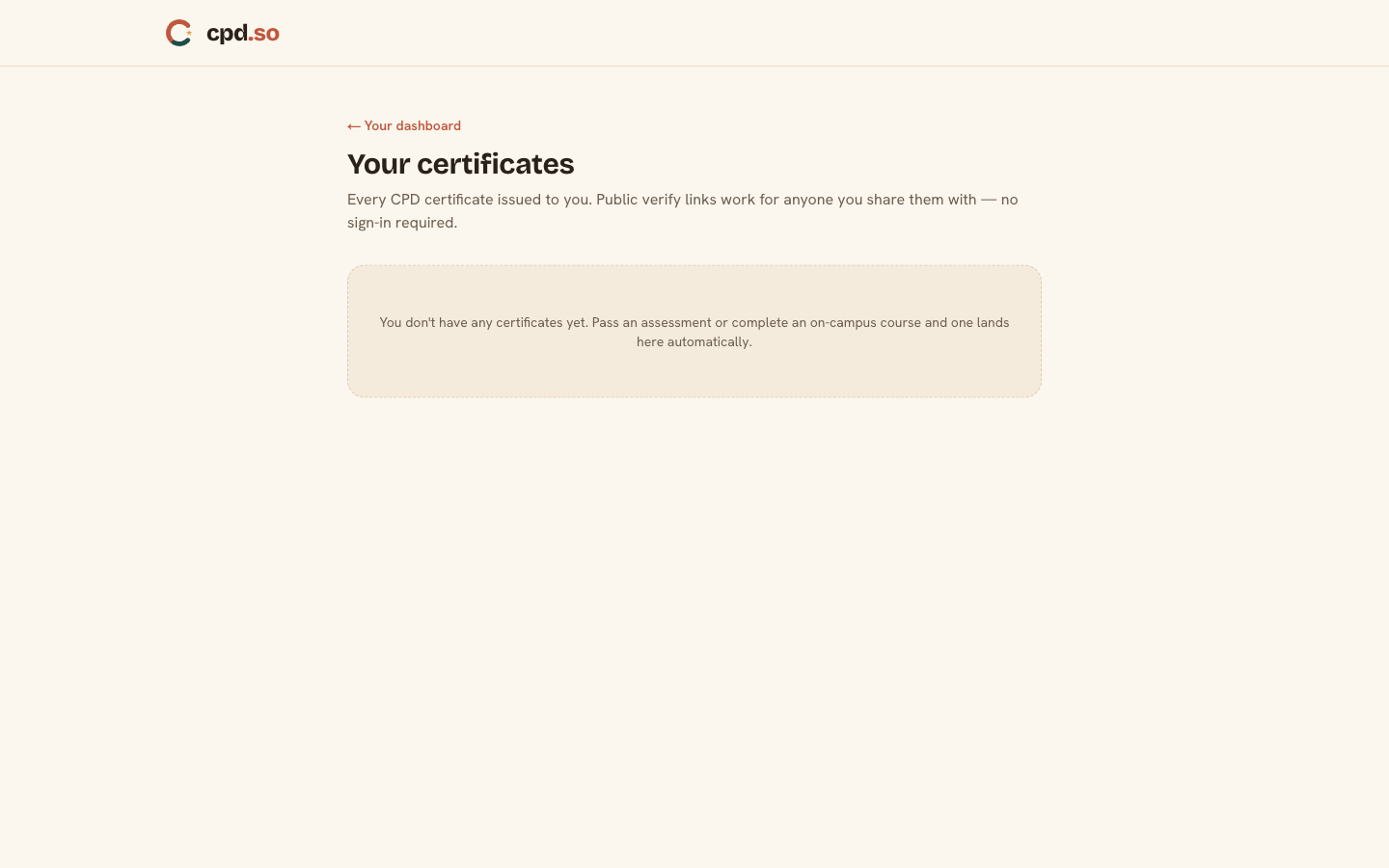
A certificate page shows:
- Your full name.
- The course title and CPD hours earned.
- The issue date and a unique certificate number.
- A QR code that opens the same page on a phone for in-person verification.
- The signature of the provider plus the cpd.so stamp.
You can download a printable PDF from the Download PDF button on the page.
6.2 · Your CPD ledger
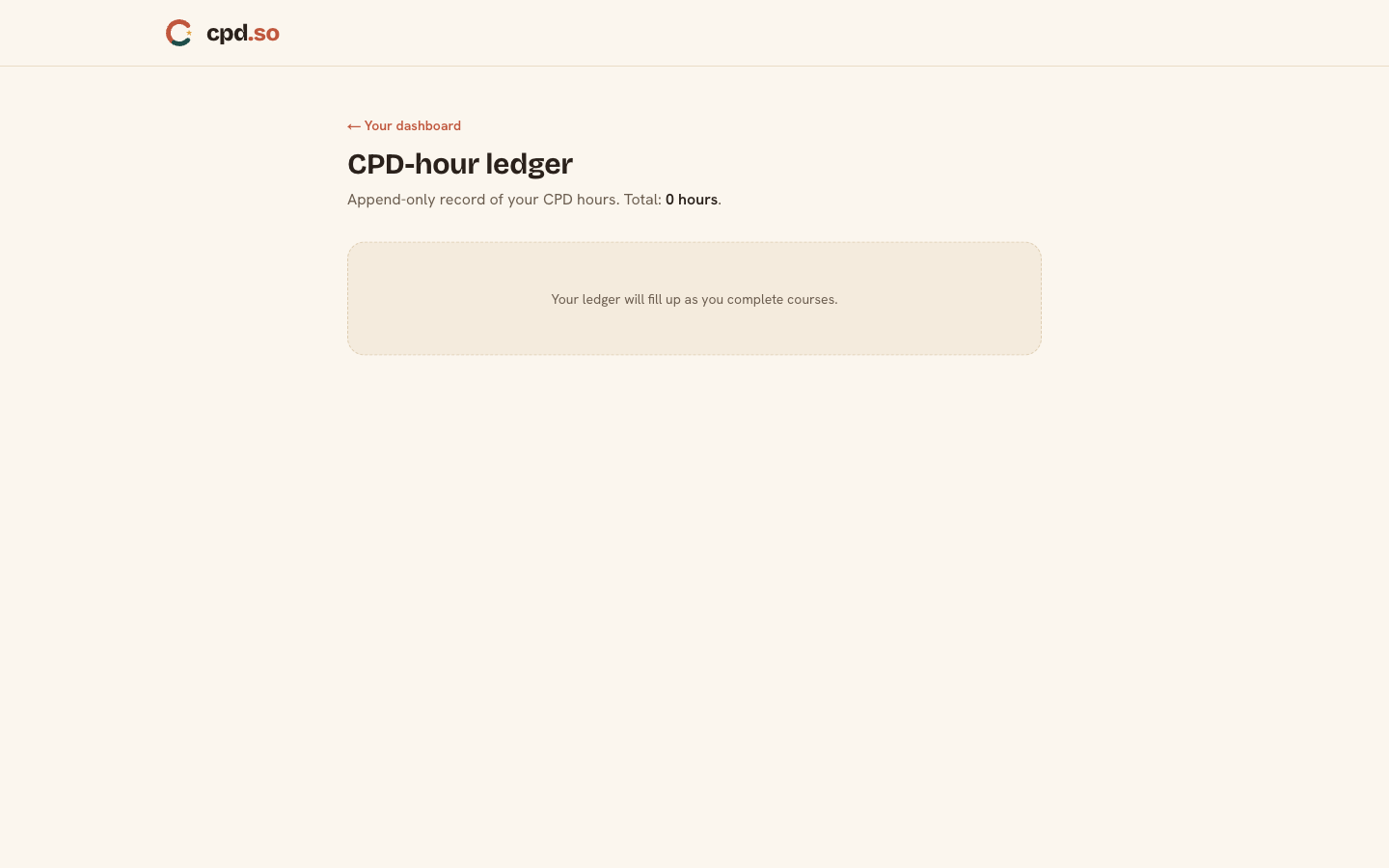
Click Ledger in the dashboard. It shows every CPD hour you've earned, in chronological order, with the course it came from. Filter by regulator if you've added regulator memberships in your profile — the ledger then shows only entries that count toward that regulator's scheme.
6.3 · Connect a certificate to a regulator
If your regulator (e.g. NHPC — the health regulator) operates its own electronic registry, you can "connect" a certificate so the hours flow into your regulator record automatically.
- Open the certificate.
- Click Connect to my regulator.
- cpd.so confirms your identity against the regulator (NIRA or passport — that's why those fields are in your profile).
- The connection is recorded on the regulator's side. Your dashboard's progress bar against that regulator's scheme increments by the certificate's hours.
"Connect" is opt-in per certificate — cpd.so never pushes hours to a regulator without your explicit click.
Chapter 7 · Verify any certificate publicly
cpd.so/verify is open to anyone — no sign-in needed.
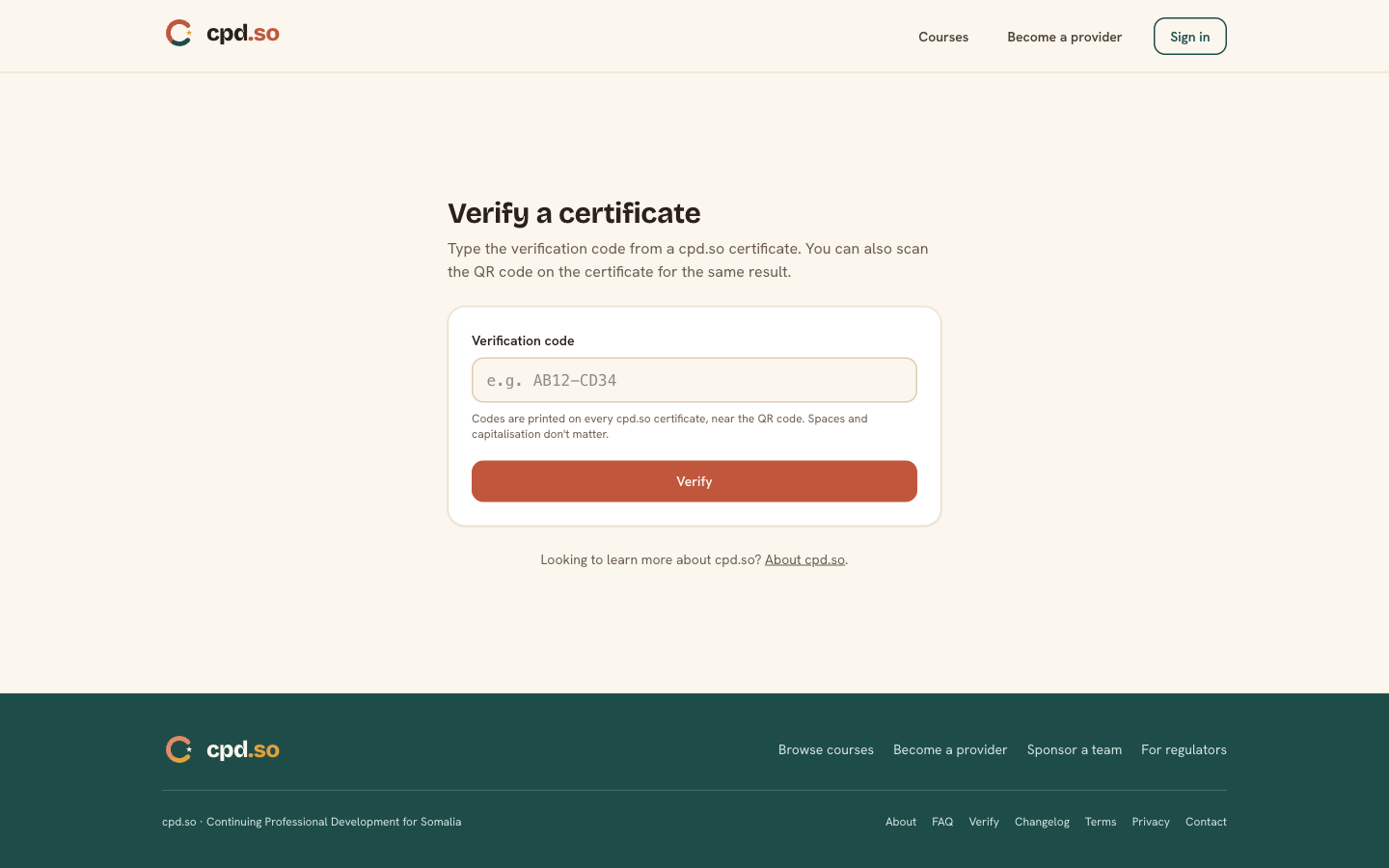
- Type the certificate number or scan the QR on the certificate.
- cpd.so returns the certificate page if the number is valid and active.
- If the certificate has been revoked, the page shows a clear red banner with the revocation date and reason.
Employers, regulators, and other professionals routinely use this page to confirm a CPD certificate is genuine.
Chapter 8 · Edit your profile, change language, delete account
- Edit your profile at
cpd.so/profileat any time. Most fields are editable; certificates issued before the change still show the old name (re-issue is a manual fix — emailinfo@cpd.so). - Change language: the language picker is on the profile page. Most pages render in your chosen language; a small handful are English-only at launch.
- Delete your account: scroll to the bottom of
/profile. Typedelete my accountin the confirmation field and click the red button. Your sign-in, profile fields, regulator memberships, and "Connect" links are removed; your ledger entries and certificates remain on record in anonymised form so issued certificates can still be verified.
Troubleshooting
| Symptom | What to do |
|---|---|
| Magic-link email didn't arrive | Check the spam folder. Resend from the sign-in page. Confirm your email is typed correctly. |
| WaafiPay/eDahab push didn't reach my phone | Confirm the number is correct (including the +252 country code). Wait 60 seconds. Retry — cpd.so won't double-charge. |
| Course says I "failed" the assessment | You can retake the assessment as many times as the provider allows. The retry count is shown on /learn/<enrolment-id>. |
| I can't see Connect on my certificate | Check that you've added the regulator under Regulator memberships in your profile. cpd.so only offers Connect for regulators you've declared. |
| My name on the certificate is wrong | Update your profile name, then email info@cpd.so from the same address — they can re-issue a single corrected certificate. |
| I lost access to my sign-in email | Use your recovery email on the sign-in page if you set one; otherwise email info@cpd.so. |
Manual lives at docs/manual-professional.md. Last revised 2026-05-16.