cpd.so manual — Provider
Step-by-step guide for training institutions, hospitals, NGOs, and individual trainers who use cpd.so to publish accredited CPD courses, issue certificates, and earn revenue.
Looking for a different role? See
manual-professional.md(learners),manual-sponsor.md(employers buying seats for staff), ormanual-admin.md(cpd super-admin staff).
Before you begin
- A laptop or phone with any modern browser.
- An email address you can receive mail at.
- The legal name of your institution and a brief description (a few sentences).
- Contact details: phone, an institution website if you have one, your accreditation history.
- A logo (square, PNG/SVG, transparent background preferred).
- The name and email of a designated administrator for your account on cpd.so.
You'll also want to think ahead about your first course: title, learning objectives, delivery mode (online vs on-campus), the CPD hours you'll request, and your proposed fee per learner.
Chapter 1 · Apply to become a provider
1.1 · Read the public information first
Open cpd.so/become-a-provider. It explains, in plain English, what cpd.so will do for you (accreditation, certificates, ledger, regulator connect, payments) and what we expect in return (quality content, honest assessment, lawful operation).
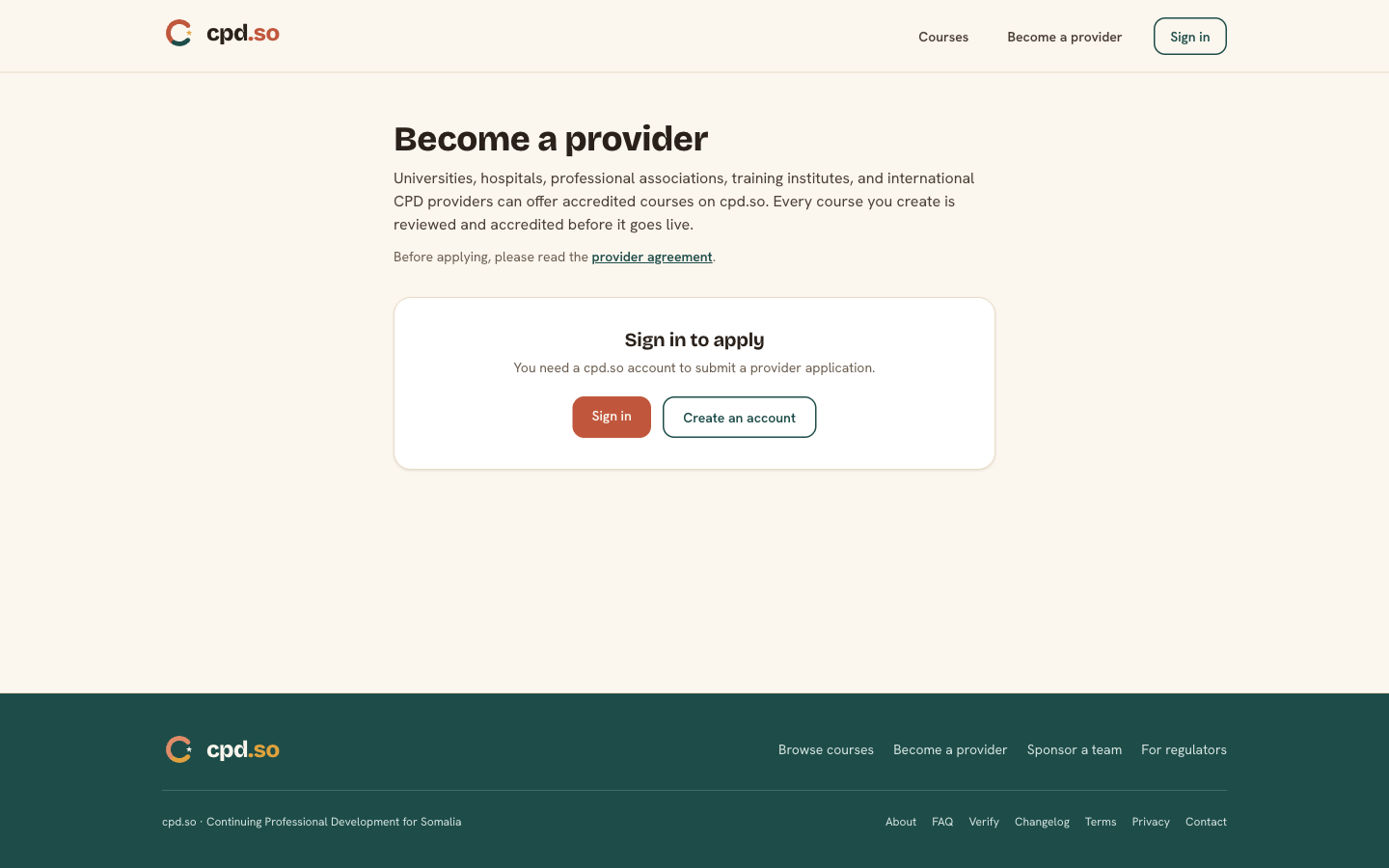
You'll also want to read cpd.so/provider-agreement — that's the agreement you sign when your application is approved.
1.2 · Submit the application
- Sign in or create an account at
cpd.so/sign-in(magic link to your email). - From the dashboard, click Run training of your own? · Apply to publish accredited courses on cpd.so, or open
cpd.so/become-a-providerdirectly while signed in. - Fill the application form:
| Field | What to enter |
|---|---|
| Institution name | Legal registered name. |
| Short description | 2–4 sentences on what your institution does. |
| Website (optional) | Public URL. |
| Contact name + email + phone | Your designated administrator. |
| Accreditation history (optional) | If you already hold accreditation from NHPC, NCHE, or any other regulator — list it. |
| Logo upload (optional) | Square PNG/SVG. |
- Click Submit application.
cpd.so notifies the super-admin team. Most applications are reviewed within 2 working days. You'll receive an email when the decision is made.
Chapter 2 · The provider portal — first run
Once approved, your account gains the provider role and a sidebar appears in your dashboard. The first time you open cpd.so/provider, cpd.so runs a first-time tour explaining the four sections of the portal:
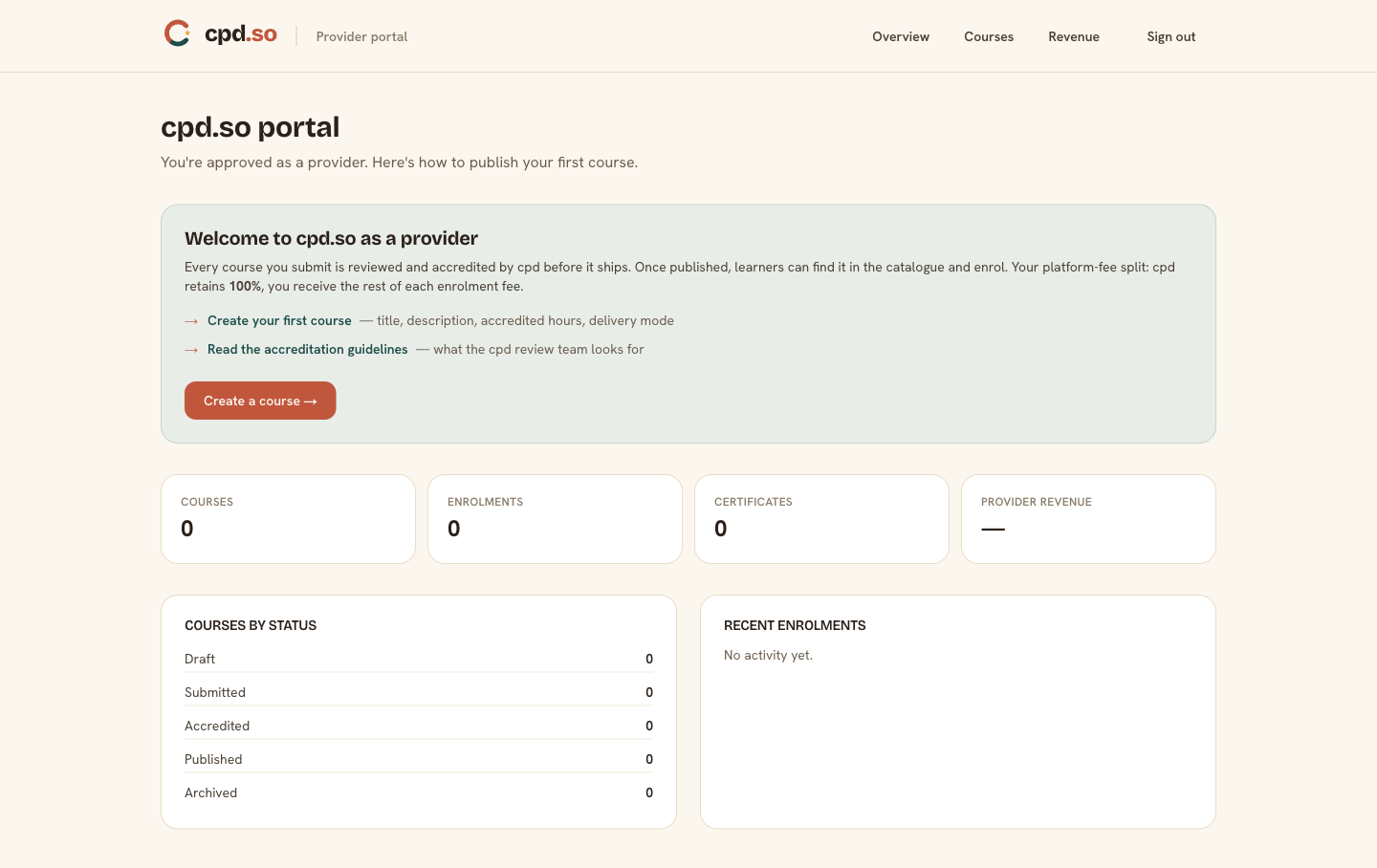
| Section | What it does |
|---|---|
Overview (/provider) |
At-a-glance: enrolment count, certificates issued, revenue this month, course-status mix. |
Courses (/provider/courses) |
Create, edit, and manage every course you run on cpd. |
Roster (/provider/roster/<session-id>) |
For on-campus sessions: see who's enrolled, mark attendance, close out the session. |
Revenue (/provider/revenue) |
See payouts owed, the platform-fee split, and your transaction history. |
Click Take the tour to walk through these. You can re-open it from the dashboard help link at any time.
Chapter 3 · Create a course
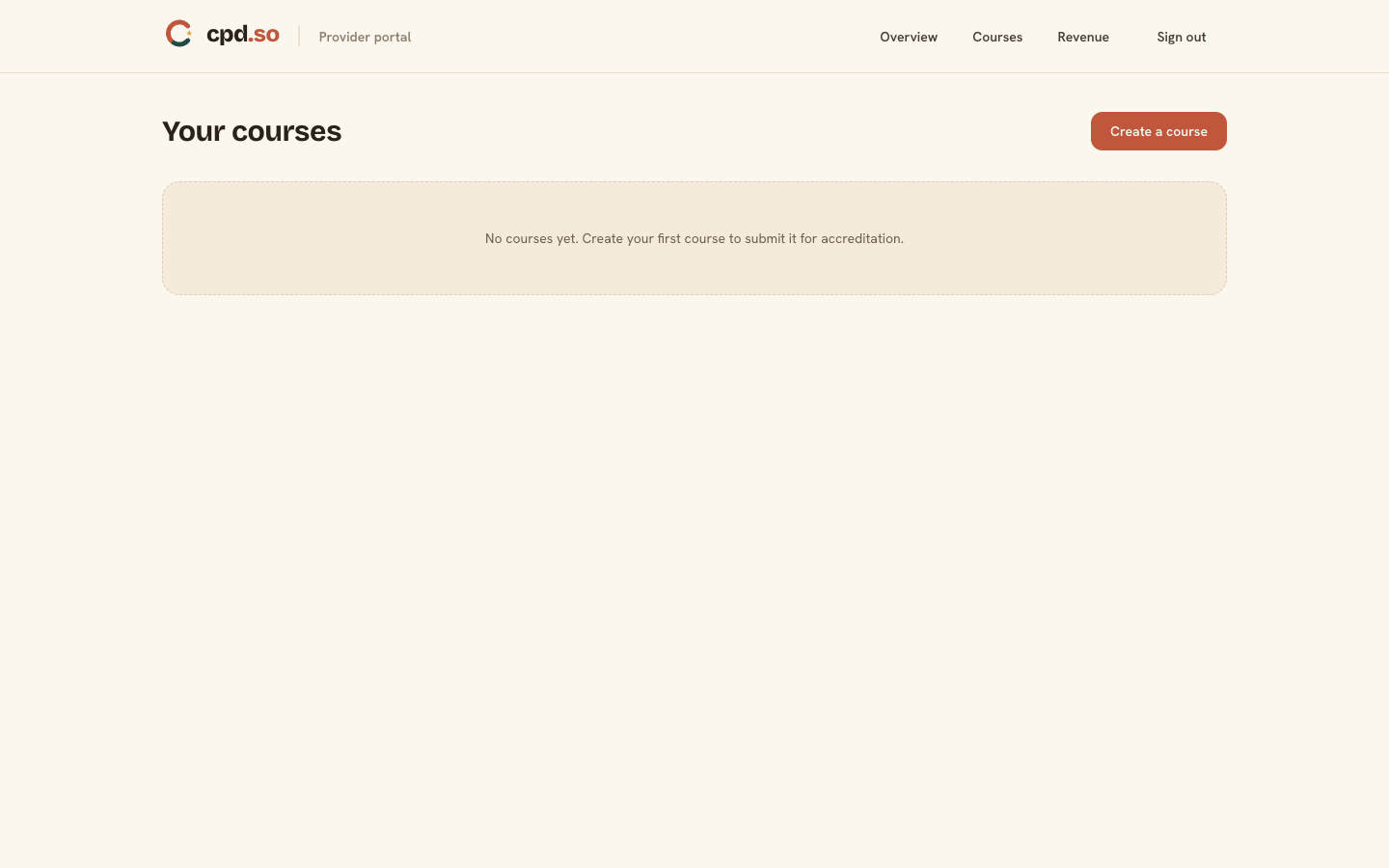
From /provider/courses click the orange + New course button.
The new-course form looks like this:
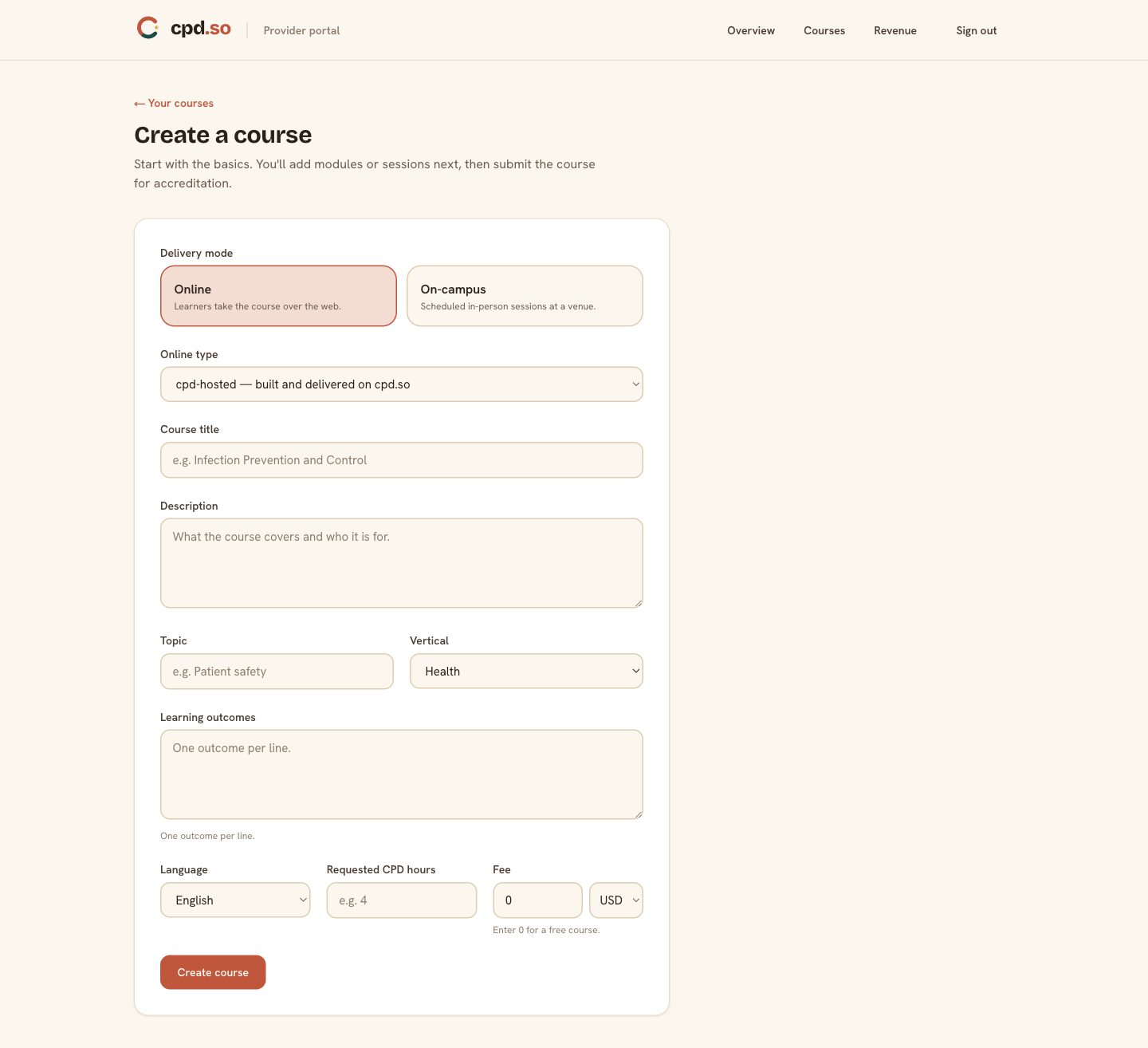
3.1 · Course basics
| Field | What to enter |
|---|---|
| Title | Plain English, ≤ 70 characters. |
| Short summary | One paragraph; this is what learners see on the catalogue card. |
| Long description | Full course description with learning objectives. Markdown supported. |
| Cover image (optional) | Landscape image; the catalogue card uses it as the background. |
3.2 · Delivery mode
Choose one. You cannot change the mode after the first enrolment.
- Online — every learner takes it remotely. Two sub-modes:
- cpd-hosted — you build the modules + assessment inside cpd.so. cpd.so handles delivery, attempt-tracking, and certificate issuance.
- External — the course content lives on your own LMS or Moodle. cpd.so handles enrolment + the certificate but learners are redirected to your URL after enrolment. You confirm completion through cpd.so's API or by manually marking learners complete on the roster page.
- On-campus — the course runs at a specific venue on specific dates. You add one or more sessions, each with start/end time, venue, and max seats.
3.3 · Online modules (cpd-hosted only)
Add modules in order. For each module:
| Field | What to enter |
|---|---|
| Title | Short module name. |
| Body | The lesson content. Markdown + embedded YouTube. |
| Estimated duration | Minutes. The total of all module durations becomes the course's CPD-hours request. |
After all modules are added, add an end-of-course assessment:
- 5–20 multiple-choice questions.
- Each question has 1 correct answer and 2–4 distractors.
- Set the pass mark — usually 80%.
- (Optional) Set a retry limit.
3.4 · On-campus sessions
Add at least one session. For each:
| Field | What to enter |
|---|---|
| Starts at | Date + time. |
| Ends at | Date + time. |
| Venue | Street address; what learners will see on their check-in page. |
| Max seats | The cap. cpd.so closes enrolment when this is reached. |
You can add more sessions later from the course detail page.
3.5 · Fee and CPD hours
| Field | What to enter |
|---|---|
| Fee | In US dollars. 0 for free. cpd.so accepts WaafiPay (Hormuud) and eDahab (Somtel) — no setup on your side. |
| Requested CPD hours | How many hours you believe the course should carry. The super-admin sets the accredited hours during review (Chapter 4). |
| Targeted regulator schemes (optional) | Tick the regulators (NHPC, NCHE, …) whose scheme the course is intended for. |
Click Save draft.
Chapter 4 · Submit for accreditation and publish
4.1 · From Draft → In review
On the course detail page, click Submit for accreditation. The course's status flips from Draft to In review. cpd.so notifies the super-admin team.
4.2 · The accreditation decision
A cpd super-admin reviews:
- The modules / on-campus session structure.
- The assessment quality (online) or the trainer's qualifications (on-campus).
- The proposed CPD hours vs the actual content depth.
The super-admin may:
- Accredit the course as-is (status → Accredited).
- Accredit with reduced hours (e.g. you requested 12 hours, accredited at 8). They leave a comment with the rationale.
- Reject with a comment. You can revise the course and re-submit.
You receive an email at every status transition.
4.3 · Publish
Once a course is Accredited, click Publish on the detail page. It appears in the public catalogue at cpd.so/courses immediately. Status flips to Published.
Published courses can be un-published (back to Accredited) but the existing enrolments survive. You can't delete a course once it has enrolments.
Chapter 5 · Run a published course
5.1 · Online (cpd-hosted)
Learners self-enrol, take the modules, and pass the assessment. cpd.so issues certificates automatically. You see the roster on /provider/courses/<id> and download a CSV of completions at any time.
5.2 · Online (external)
Learners self-enrol and are redirected to your URL. They study on your platform. You then either:
- Use cpd.so's API key to POST a
completionevent from your LMS, or - Open the course roster and manually mark complete each learner once your LMS has confirmed they finished.
cpd.so then issues the certificate.
5.3 · On-campus
On the morning of each session:
- Open
/provider/roster/<session-id>on a tablet or laptop. The roster shows every enrolled learner. - At the door, check learners in by scanning their QR (from their phone) or typing their 6-character check-in code. The row flips to Attended.
- At the end of the session, click Close session at the bottom of the roster. cpd.so issues certificates to every learner marked Attended.
If a learner enrolled but didn't show up, their row stays Enrolled — no-show. You can issue a refund from the row's action menu, subject to your refund policy.
Chapter 6 · Revenue and payouts
Open /provider/revenue to see:
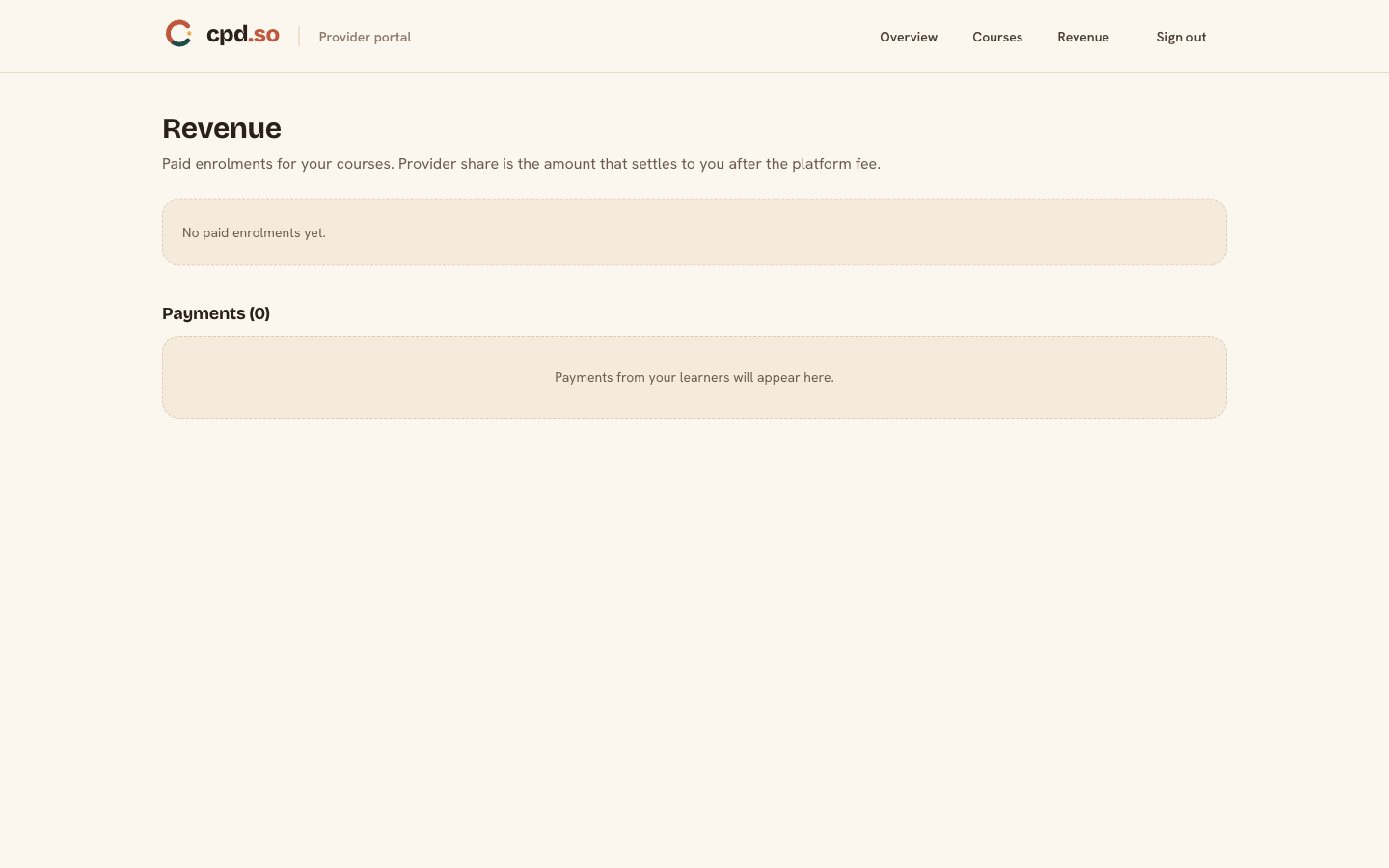
- This month's revenue (sum of every enrolment fee paid).
- The platform fee cpd.so charges (default 30%; set by the super-admin at provider approval time — see your
/provider-agreement). - Your net payout for the month.
- A line-by-line transaction history with date, learner, course, and amount.
Payouts are made monthly, to the bank or mobile-money account on file. Reach out to info@cpd.so to set or update the payout destination.
Chapter 7 · Edit, archive, and quality
- Edit a course at any time — but if the change is material (CPD hours, assessment, structure), the super-admin may ask you to re-submit for accreditation.
- Archive a course (set status to Archived) when you no longer want it on the catalogue. Existing enrolments and certificates survive; no new enrolments are accepted.
- Quality: cpd super-admins spot-check learner feedback and assessment-pass distributions. Courses with consistently abnormal patterns (e.g. 100% pass rate on a trivial assessment) may have their accreditation re-reviewed.
Troubleshooting
| Symptom | What to do |
|---|---|
| Application is "Pending" for more than a week | Email info@cpd.so with your institution name. |
| Course was rejected | Open the course detail page; the super-admin's comment is at the top. Revise and re-submit. |
| Can't change the delivery mode | Locked after the first enrolment. Create a fresh course in the other mode instead. |
| Payout amount looks wrong | Compare line items in /provider/revenue against the platform-fee percent in your /provider-agreement. Email info@cpd.so with any discrepancies. |
| Need to refund a learner | From the roster, open the row's menu → Refund. Refund flows back through the same payment provider used (WaafiPay/eDahab) within 1–3 working days. |
Manual lives at docs/manual-provider.md. Last revised 2026-05-16.