cpd.so manual — Employer / Sponsor
Step-by-step guide for hospitals, schools, NGOs, government agencies, and any employer who uses cpd.so to buy CPD seats in bulk for their staff.
Looking for a different role? See
manual-professional.md(individual learners),manual-provider.md(training institutions), ormanual-admin.md(cpd super-admin staff).
When sponsor mode is useful
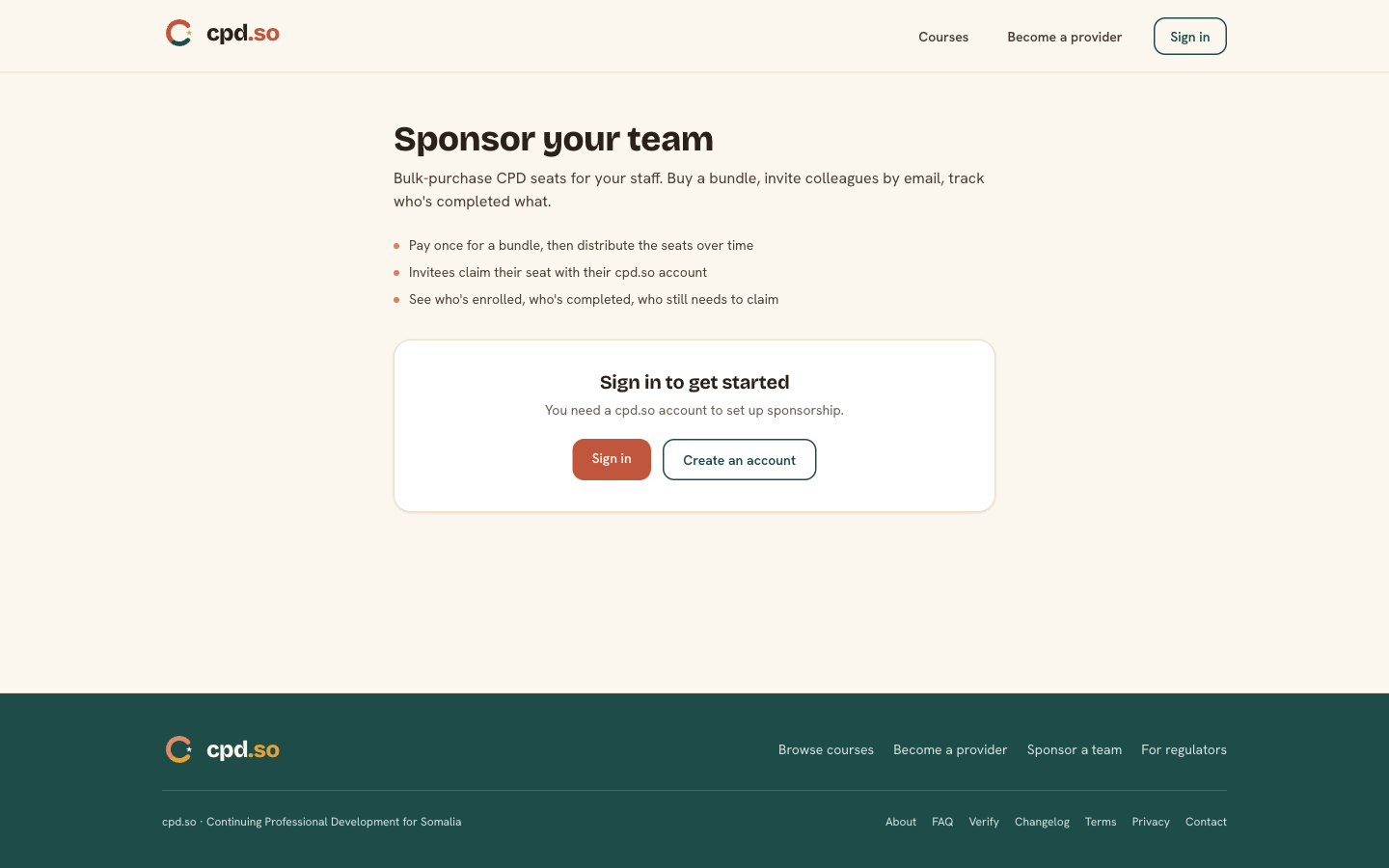
You're an employer with two or more staff who need CPD hours, and you'd rather pay once for a pool of seats than have each staff member pay themselves and expense it.
cpd.so seat bundles let you:
- Pre-pay for N seats on a course (or a curated set of courses).
- Assign seats to specific staff members by email — they enrol for free.
- Report on who completed what, with download to CSV — useful for HR records, regulator audits, or grant reporting.
Seat bundles are scoped to one or more courses you pick at purchase time. They don't expire (until the underlying course is archived).
Chapter 1 · Apply to become a sponsor
1.1 · Read the public page
Open cpd.so/become-a-sponsor. It explains what bundles are, how billing works (you pre-pay, no monthly fee), and the kinds of organisations this is built for.
1.2 · Submit the application
- Sign in or create an account at
cpd.so/sign-in(magic link to your work email). - From the dashboard, open
cpd.so/become-a-sponsor. - Fill the application:
| Field | What to enter |
|---|---|
| Organisation name | Legal registered name of your employer. |
| Sector | Health · Education · Government · NGO · Private sector · Other. |
| Headcount | Roughly how many staff you expect to buy seats for. |
| Contact name + work email + phone | The designated administrator for your account. |
| Billing email | The address invoices and receipts should go to. May differ from the contact email. |
- Click Submit application.
A cpd super-admin reviews and approves the application — typically within 2 working days. You'll receive an email when the decision is made.
Chapter 2 · The sponsor portal
Once approved, your account gains the employer_sponsor role. A Sponsor portal sidebar appears in your dashboard:
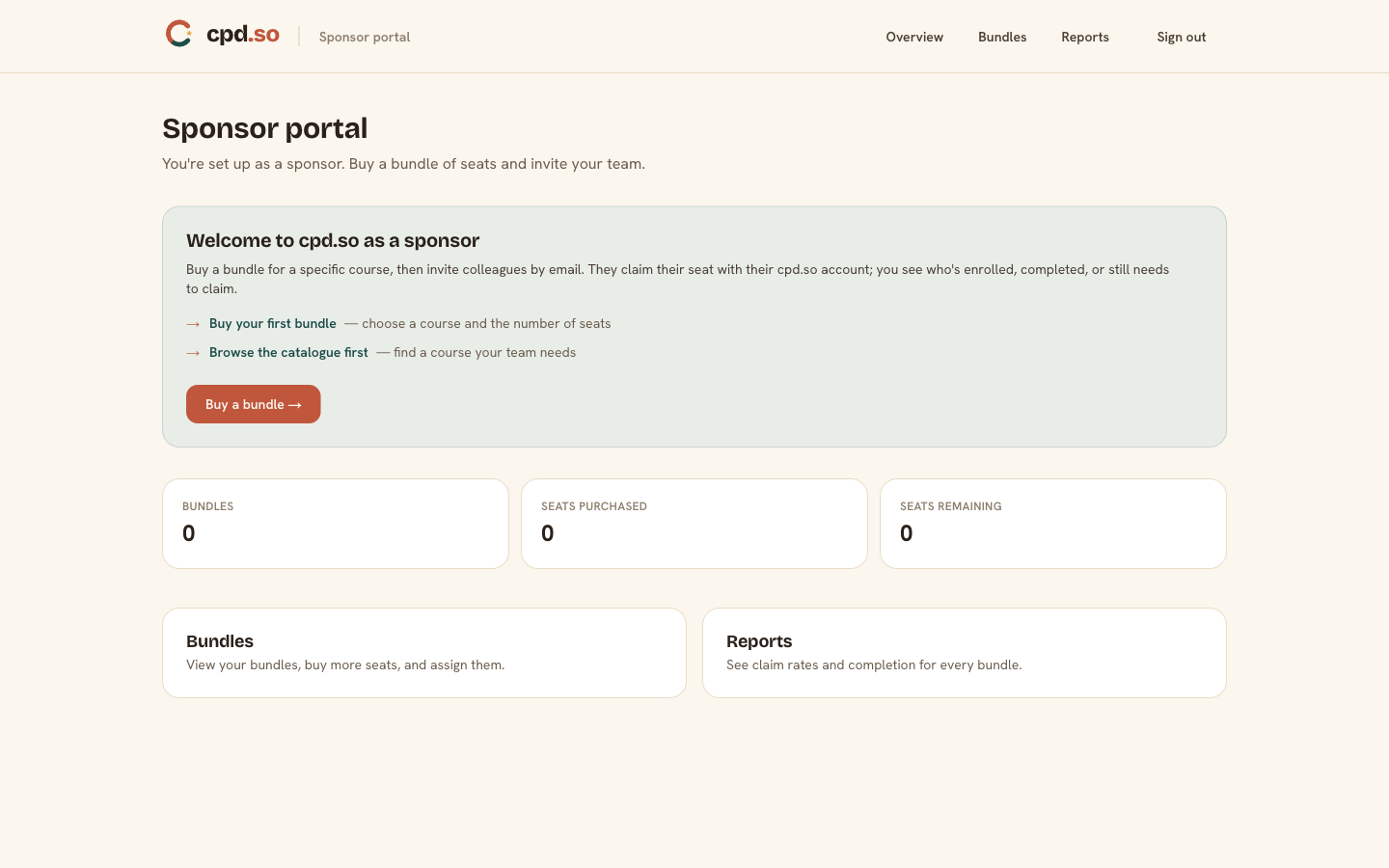
| Section | What it does |
|---|---|
Overview (/sponsor) |
At-a-glance: seats remaining, seats used, last 5 redemptions. |
Bundles (/sponsor/bundles) |
Buy new seat bundles. Assign seats to staff. |
Reports (/sponsor/reports) |
Who completed what, downloadable to CSV. |
The first time you open the portal, cpd.so runs a short first-time tour. Click Take the tour to step through these sections.
Chapter 3 · Buy a seat bundle
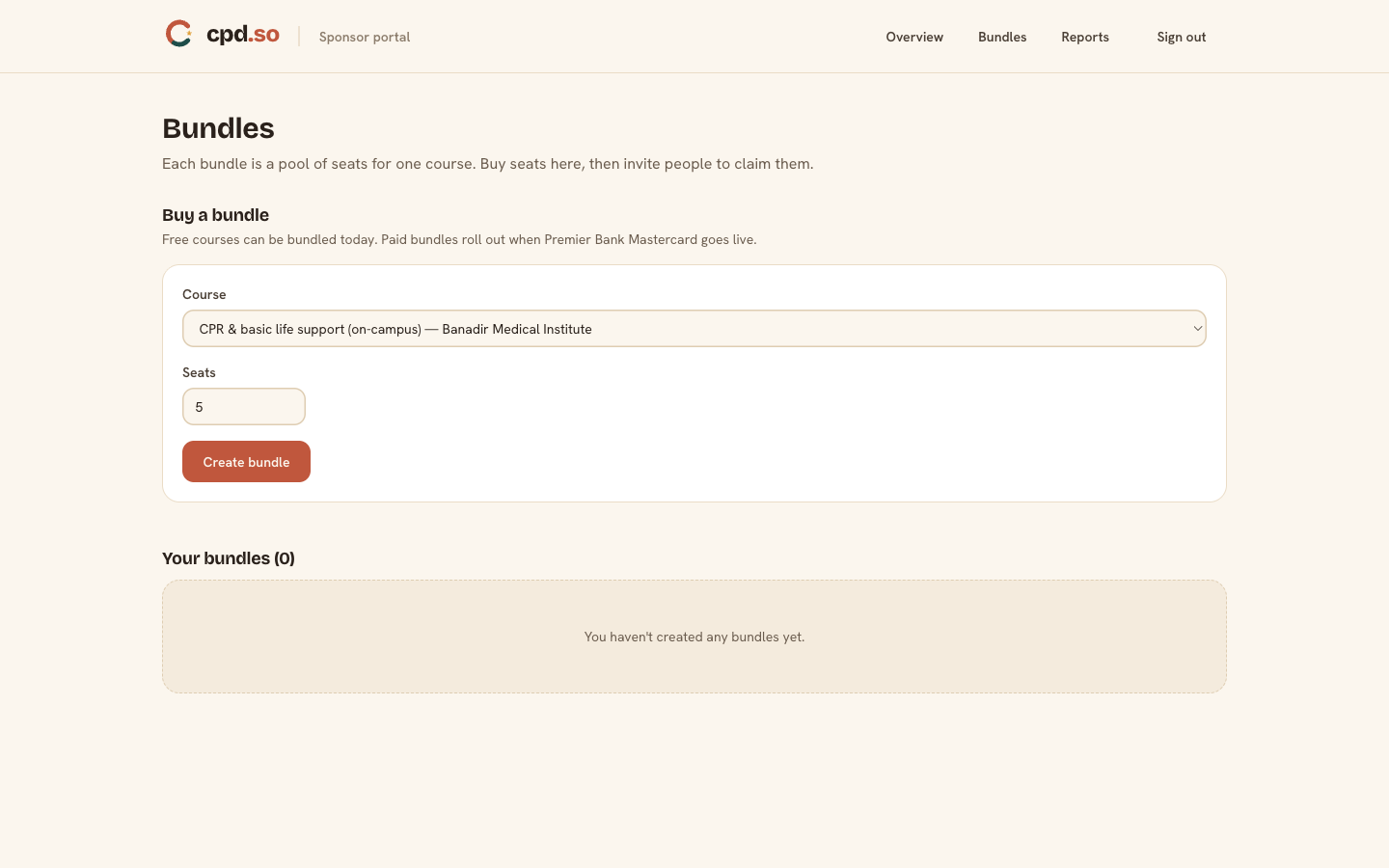
From /sponsor/bundles click + New bundle.
3.1 · Pick the courses
- Choose one or more published courses from the catalogue. You can mix online + on-campus.
- cpd.so shows the per-seat price for each course. The cheapest course's price is the per-seat price for the bundle.
3.2 · Pick the seat count
| Tier | Per-seat price |
|---|---|
| 1–24 seats | Full price |
| 25–99 seats | 10% volume discount |
| 100+ seats | 20% volume discount |
The discount is applied automatically on the basis of the seat count you enter.
3.3 · Pay
- cpd.so generates a single invoice for the bundle.
- Pay by WaafiPay (Hormuud) or eDahab (Somtel) mobile money, or request a bank invoice (preferred for large orders).
- Once payment clears, the bundle status flips to Active and the seats become available for assignment.
Bank-invoice flow: cpd issues a PDF invoice with bank details. Your finance team transfers the funds. cpd marks the invoice paid and activates the bundle. Allow 1–3 working days.
Chapter 4 · Assign seats to staff
On the bundle detail page /sponsor/bundles/<id> you'll see the seat count, the courses the bundle covers, and an Invite staff section.
4.1 · Single invitations
- Type or paste the staff member's email address.
- Click Send invite.
- cpd.so emails the staff member a single-click enrolment link. They sign in (magic-link), the seat is consumed, and they're enrolled in the course(s) the bundle covers.
4.2 · Bulk invitations
For larger rosters, paste a list of emails (one per line, or a CSV with one email column) into the Bulk invite field. cpd.so:
- De-duplicates.
- Caps invitations at the remaining seat count.
- Emails each address a personal enrolment link.
- Shows a summary of who was invited / who couldn't be (e.g. invalid email).
4.3 · Resend / revoke invitations
Each invitation row in the bundle detail shows its status:
| Status | What it means |
|---|---|
| Invited | Email sent, awaiting redemption. Resend sends another email. |
| Redeemed | Staff member signed in and the seat was consumed. The seat is now bound to them. |
| Revoked | You revoked the invitation before redemption. The seat returns to the bundle pool. |
You can revoke an Invited seat at any time. You cannot revoke a Redeemed seat — the staff member is enrolled and any progress is theirs.
Chapter 5 · Reports
Open /sponsor/reports to see, for every redeemed seat:
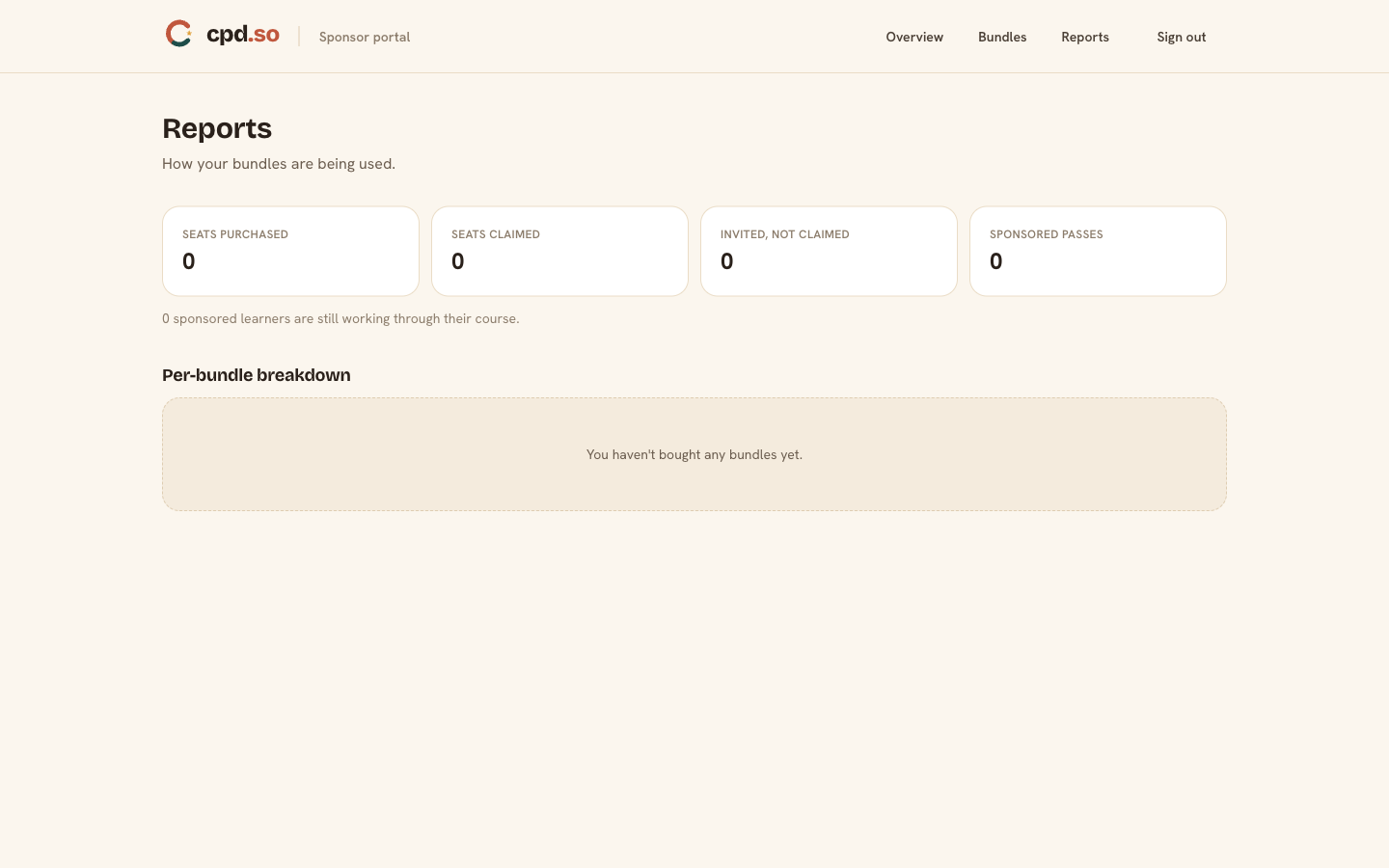
- Staff member name + email.
- Course title and provider.
- Status (Enrolled, In progress, Passed, Completed, Failed).
- CPD hours earned (once completed).
- Completion date.
Filters: by course, by status, by date range, by staff member.
Download CSV at the top of the page exports the current filtered view. Useful for:
- HR records.
- Regulator audits — many regulators allow employers to submit aggregate CPD records on behalf of staff.
- Grant reporting — funders often want completion stats by quarter.
Privacy note: as a sponsor you see your staff's course-level progress. You do not see their individual ledger, profile, or any other CPD activity they did outside your bundle. Staff retain full control of their own dashboard.
Chapter 6 · Billing, invoices, and refunds
- Invoices for every bundle are emailed to the billing email on file. Download from
/sponsor/bundles/<id>. - Refunds on unused seats: if a bundle has unused seats and the course is no longer needed, email
info@cpd.so. cpd refunds the unused-seat value through the original payment method, less a 5% processing fee. - Refunds on redeemed seats: a redeemed seat is treated as a sale — refunds follow the provider's refund policy for that course.
- Payout receipts for every invoice are downloadable from
/sponsor/bundles/<id>once payment clears.
Troubleshooting
| Symptom | What to do |
|---|---|
| Staff member didn't get the invite | Check spam. Resend from the bundle detail. Confirm their email is typed correctly. |
| Bank invoice was paid but bundle still shows "Pending" | Email info@cpd.so with the invoice number and the bank-transfer reference. cpd matches transfers manually for now. |
| Bundle shows fewer seats than I bought | Open the bundle detail and add the Invited / Redeemed / Revoked counts. They must sum to the bundle total. Email cpd if they don't. |
| Need to change the billing email | Email info@cpd.so from the existing billing email. |
| Report shows blank completions | Wait 5–15 minutes after a staff member finishes — the ledger update is async on the provider's side for on-campus and external courses. cpd-hosted online courses update instantly. |
Manual lives at docs/manual-sponsor.md. Last revised 2026-05-16.